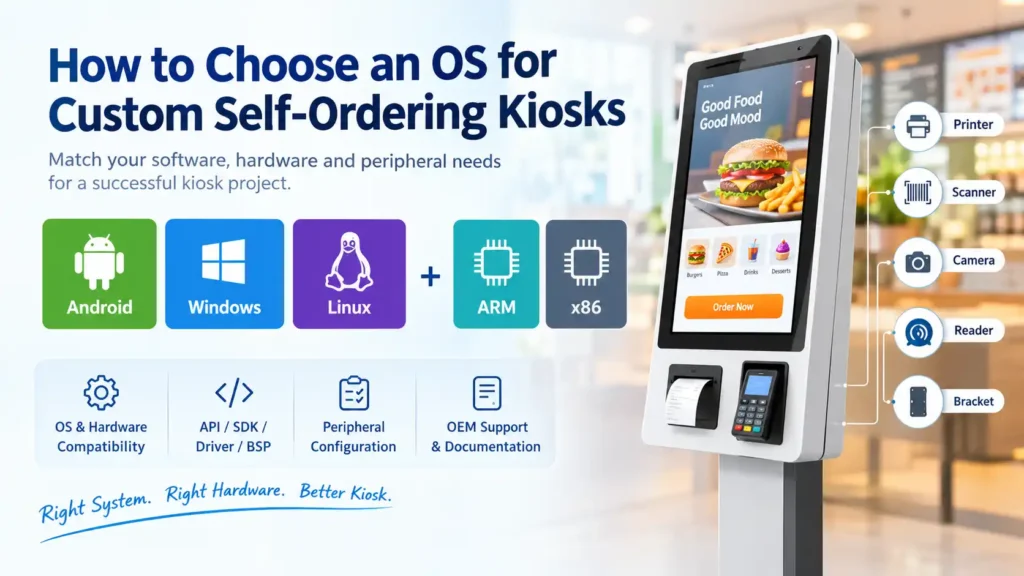
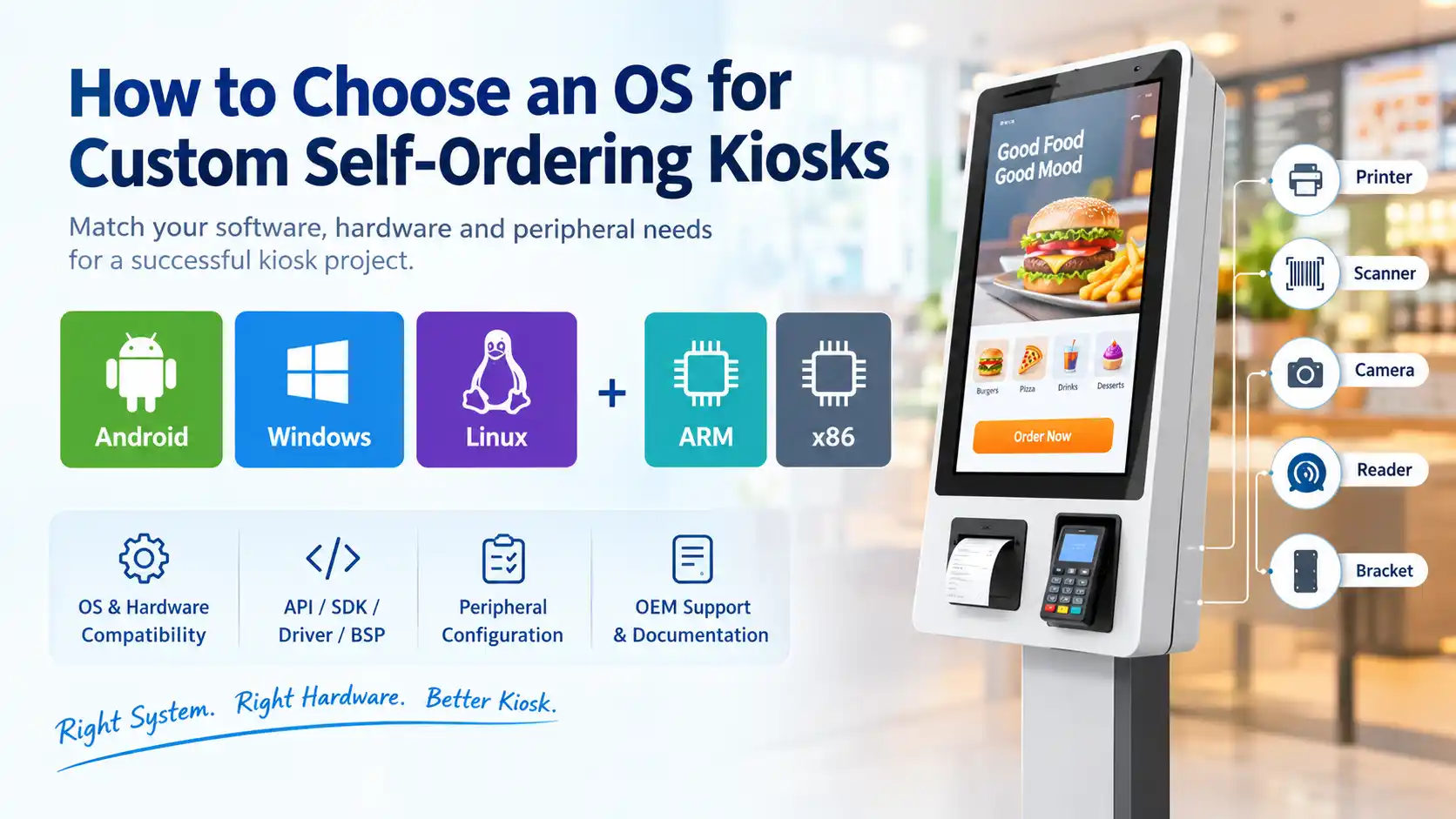
A self-ordering kiosk operating system is the first hardware decision that determines every later one: which mainboard the factory can fit, whether the processor is ARM or x86, how much RAM and storage the enclosure needs, which peripherals can be driven, and how much technical support your supplier is expected to provide after delivery. Buyers who confirm the enclosure size, the screen resolution and the cabinet colour but leave the operating system open usually discover the gap weeks later, when their software team tries to print a receipt or read a payment card and finds that the peripheral, the driver and the mainboard do not line up.
This guide is written for overseas buyers, project contractors and system integrators who are sourcing custom self-ordering kiosk hardware and need to specify an operating system without being a platform engineer. It explains what each operating system is genuinely good at, how ARM and x86 change the compatibility rules, what each peripheral option is for, what a driver, an API, an SDK and a BSP actually mean in a purchase order, and what a hardware-only OEM factory is and is not responsible for. The aim is that you can send one accurate request for quotation the first time.
Key Takeaways
- Decide the software first, the operating system second. Android, Windows and Linux are not ranked best to worst; each one is correct only against a specific application, developer and lifecycle plan.
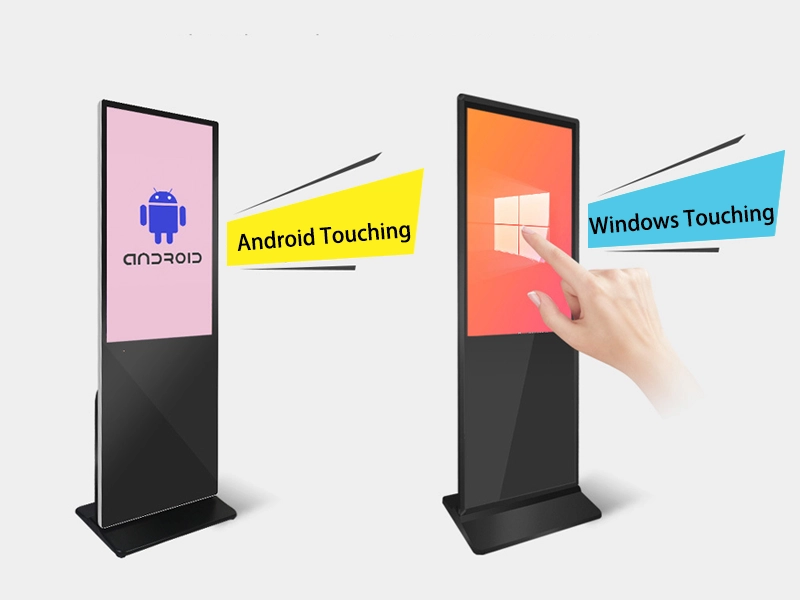
- The architecture and the operating system are one decision, not two. Android runs on ARM SoCs; Windows runs on x86; Linux runs on both. The mainboard the manufacturer ships is what your software team actually has to work with.
- Support expectations differ by platform and by architecture. On ARM-based Android and ARM-based Linux builds the buyer’s developers normally integrate peripherals through the manufacturer’s API and SDK; on x86 Windows and x86 Linux builds the same peripheral usually arrives as an installable driver. Confirm which one applies to each module before the quotation is signed.
- Peripherals are a compatibility question, not a shopping list. Printer width, scanner interface, camera class and card-reader protocol each have to be matched against the mainboard, the operating system version and the available current budget.
- Ask for the documentation package in writing. Pinout, port map, power budget, CAD, tested peripheral models and the exact scope of driver or SDK support belong in the quotation — not in a post-order email thread.
1. What Should You Consider Before Choosing a Kiosk Operating System?
Start with the software you intend to run, not with the hardware spec sheet. The operating system is a consequence of the application, the developer and the deployment scale — not an independent choice. Buyers who pick “Android because it is cheaper” before checking whether their existing ordering platform has an Android build are the ones who pay for a software port later.
1.1 What Software Will Your Kiosk Run?
Identify the application before anything else, and be specific about its build target:
- Existing POS, ERP or restaurant ordering software. If a licensed platform is already running your counters, its supported operating systems and minimum hardware requirements are fixed. That document — not the kiosk brochure — sets the specification.
- Android applications. Usually a native or hybrid app distributed as an APK, sometimes wrapped in a kiosk-launcher shell. Confirm the minimum and target API level, because an APK built for a newer Android version will not install on an older board image.
- Windows desktop software. Classic Win32 or .NET applications, often integrated with peripheral drivers that only exist for Windows. Check whether the software needs a local database engine or a specific .NET runtime version.
- Browser-based ordering systems and web applications. A modern web app reduces the operating system to a browser host, which is the single biggest reason Android and Linux have become practical kiosk platforms. Confirm whether the app needs a specific Chromium version, WebGL, or camera permissions.
- Custom software developed by your in-house team or software partner. If your developers are writing the ordering client, they should specify the platform; hand them the mainboard data sheet rather than a marketing page.
1.2 Who Will Develop and Maintain the Software?
The party that maintains the software over the next five years decides the platform. Ownership of the application is the root of most operating system arguments in a kiosk project.
- Buyers with an existing software platform. The vendor’s supported operating system list wins. Migration cost normally exceeds any hardware saving.
- Buyers developing their own applications. The team’s existing skills matter more than theoretical efficiency: a team that writes Android daily will ship an Android kiosk faster than a Linux one.
- Buyers working with third-party software developers. Get the operating system, version and architecture written into the developer’s contract before you order hardware, because a change after tooling is a change you pay for twice.
- Responsibilities of the hardware manufacturer versus the software integrator. The factory supplies the physical terminal, the mainboard, the port map and the module interface documentation. The integrator supplies the application, the operating system image in most cases, the payment gateway connection and the ongoing maintenance.
The split between hardware vendor and software integrator is easier to plan once you have seen how an order actually travels through a venue — from customer screen to kitchen display — which is covered in Adhaiwell’s breakdown of how a self-ordering kiosk hands an order to the POS and kitchen display system.
1.3 What Are Your Operating Environment and Business Requirements?
Lifecycle planning is where operating system choice quietly costs the most money. A platform decision made on unit price alone tends to be revisited at the first security patch cycle.
- Number of kiosks and expected service life. A five-unit pilot tolerates manual updating. A 300-unit rollout across three countries does not — the fleet needs remote device management, staged updates and a rollback path, and those features are not equally mature on every platform.
- Daily operating hours and environmental conditions. A countertop unit running 12 hours indoors and a floor-standing unit running 24/7 in a covered outdoor plaza have different thermal and durability demands, which in turn constrain how much processing power the enclosure can dissipate.
- Budget, maintenance, security updates and remote device management. Price here means total cost of ownership, not purchase price: operating system licensing, security update commitments, field-service frequency and the engineering hours your own team will spend keeping the fleet current.
- Installed-base scale as a planning input. Self-ordering kiosks are no longer an early-adopter format. Market Reports World (2026) reports that more than 58% of large restaurant chains already operated at least one self-ordering kiosk location in 2025, against 37% in 2020, with more than 420,000 active kiosk units globally and 21-inch to 32-inch touchscreens accounting for 61% of installed systems. Treat that as directional industry context from a commercial research report rather than a forecast for your own project — but it does mean spare-part availability, firmware support and fleet tooling should be assumed to matter.
2. Android vs Windows vs Linux: Which Operating System Is Best for Your Kiosk?
There is no single best operating system; there is only the one your software already runs on. Android wins on cost and touch-first user experience, Windows wins on compatibility with existing business software, and Linux wins on control for teams that maintain their own image. The comparison below is deliberately about fit rather than ranking.
The kiosk format itself has moved from pilot projects to a standard front-of-house channel. PW Consulting’s *Worldwide Restaurant Self-order Kiosk Market 2026* puts the restaurant self-order kiosk market at US$3.85 billion in 2025, rising to US$4.48 billion in 2026 and projected at US$10.87 billion by 2032 (a 16.03% CAGR), with hardware accounting for 63.0% of component value in 2025, quick-service restaurants representing 54.5% of demand, and average check size reported 15–20% higher where automated upsell prompts are used. These are third-party estimates from a commercial research report; methodologies differ between research firms, so treat them as directional context rather than as a revenue forecast for a specific venue.
2.1 Android Kiosks: Best for Compatible Android Applications
Android is the default choice when the ordering application is already an Android app and the peripheral set is modest. It runs on low-cost ARM system-on-chip platforms, boots quickly, and is easy to lock down into a single-application experience.
- Advantages. Low hardware cost at volume; no operating system licence fee; the largest pool of application developers in the world; native kiosk lockdown through Lock Task Mode and screen pinning; mature remote management through Android Enterprise.
- Limitations. Peripheral access frequently depends on the manufacturer’s own libraries rather than a generic operating system driver; Android version upgrades on custom boards are driven by the board vendor, not by Google; and long-term security patching depends on a supply-chain commitment that varies widely between suppliers.
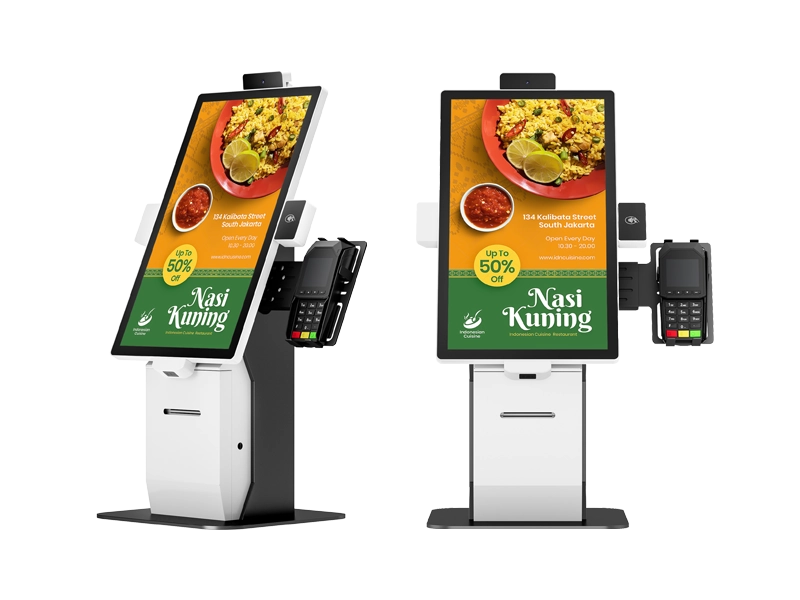
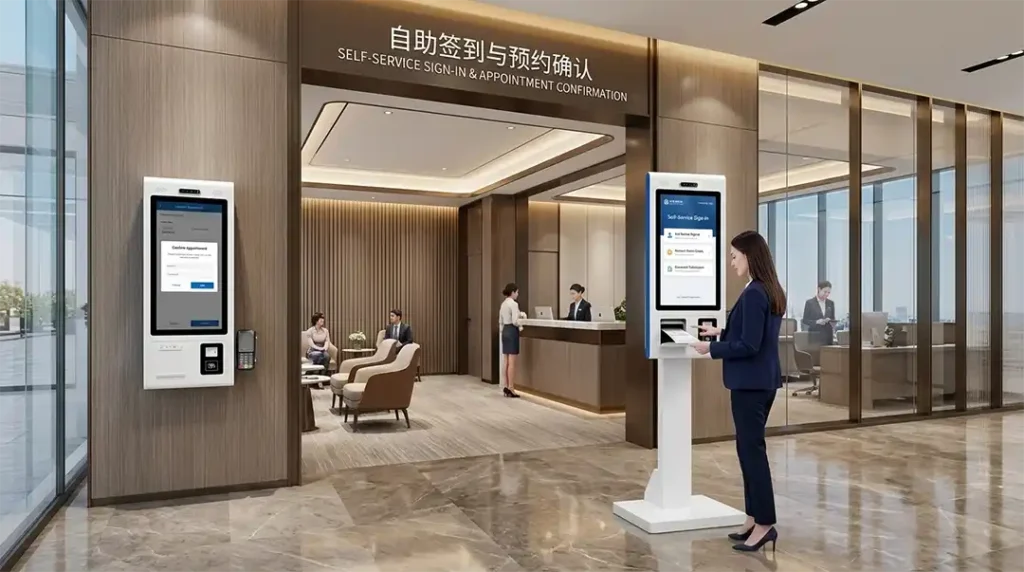
- Typical use cases. Quick-service and fast-casual ordering counters, retail self-service points, hospitality check-in, and public information terminals. The range of venues now running this class of terminal — restaurants, retail, banking, healthcare and hospitality — is documented in Adhaiwell’s survey of self-service terminals deployed across restaurants, retail, banking and hospitality.
- Supported Android versions and application compatibility. In practice current kiosk boards ship on Android 10, 11 or 14. Ask for the board’s Android version, the security patch level, and how many years of security updates the board vendor commits to.
- What a credible Android support commitment looks like. Google’s Android Enterprise Recommended programme is the closest thing to a published benchmark. For rugged devices it requires security updates within 90 days for a minimum of five years from first shipping date; for knowledge-worker devices the requirement is three years. Its rugged minimum hardware baseline is 2 GB RAM, 16 GB storage and a 1.1 GHz processor (Google, 2026). If a kiosk board cannot meet a five-year patching commitment, plan for a platform refresh inside the kiosk’s service life.
- Peripheral integration and manufacturer SDK/API requirements. This is the point buyers most often miss. On Android, a receipt printer, a card reader or a camera is not automatically a plug-and-play device. In many cases the peripheral vendor or the kiosk manufacturer must supply a library, a service or a set of example code, and your developers integrate against that. Confirm module by module, before ordering.
2.2 Windows Kiosks: Best for Existing Windows-Based Software
Windows is the correct choice when the buyer already runs Windows POS, ERP or desktop software, or needs peripherals that only carry Windows drivers. It is the most forgiving platform for mixed peripheral sets, and the least forgiving on cost and lifecycle planning.
- Advantages. The widest peripheral driver availability of any kiosk platform; direct compatibility with mainstream POS and ERP packages; enterprise-grade manageability when the buyer’s IT policy requires domain or MDM enrolment; familiar tools for in-house Windows developers.
- Limitations. Operating system licensing cost per unit; larger RAM and storage requirements than Android for the same task; more demanding thermal design; and a support window that now needs deliberate planning.
- Windows 10 lifecycle, stated plainly. Microsoft ended support for Windows 10 on 14 October 2025. Consumer Extended Security Updates run to 12 October 2027, but Microsoft’s own terms state that consumer ESU enrolment is not offered for devices in kiosk mode, and that the consumer programme cannot be used in commercial scenarios. Commercial Extended Security Updates are available through volume licensing at US$61 per device for the first year, with the price doubling in each consecutive year for a maximum of three years (Microsoft, 2025). For a new kiosk project this is the practical argument for specifying Windows 10 IoT Enterprise LTSC or Windows 11 from the start rather than reusing a standard Windows 10 image.
- Compatibility with Windows POS, ERP and desktop applications. Confirm the exact edition. Software that expects a full desktop with a specific .NET runtime and a local database behaves differently under a locked-down kiosk shell or an LTSC image with a reduced component set.
- Driver availability and peripheral integration. Windows usually needs no manufacturer SDK for standard classes such as USB HID scanners and UVC cameras. Proprietary devices are the exception.
- Licensing, security updates and long-term support. Decide who buys and activates the licence before the order is placed. Sourcing hardware “Windows-ready” and licensing it separately is normal, but it must be an explicit line in the quotation, not an assumption.
2.3 Linux Kiosks: Best for Custom Embedded Systems
Linux is the right answer when the buyer’s own engineers intend to own the operating system image. It offers the tightest control, the smallest footprint and the longest support horizon of the three — at the cost of requiring genuine in-house engineering capability.
- Advantages. No licence cost; a minimal image that reduces both attack surface and storage needs; deterministic long-term support through distributions such as Ubuntu LTS; full freedom to standardise one image across an entire fleet; strong fit for unattended 24/7 operation.
- Limitations. The buyer must be able to build, patch and maintain the image; hardware support depends on the board support package the mainboard vendor provides; and consumer-facing ordering applications are usually web-based on this platform rather than native.
- Supported distributions, versions and support horizon. Canonical maintains each Ubuntu LTS release for 10 years in total — five years of standard security maintenance plus five years of Expanded Security Maintenance through Ubuntu Pro. Ubuntu 24.04 LTS reached end of standard support in May 2029 and carries Ubuntu Pro support to May 2034 (Canonical, 2026). Customised Debian and vendor embedded Linux builds follow their own, usually shorter, cycles.
- Hardware drivers, BSP and system-level integration. On ARM Linux the mainboard vendor’s BSP is the foundation: kernel version, device tree, driver set and the display and touch configuration all come from it. A board without a maintained BSP is a board your engineers will be maintaining themselves.
- Software maintenance and expertise required. Budget the engineering hours honestly. Linux reduces licence cost and raises the internal capability requirement; that trade is only worthwhile when the buyer has the team.
2.4 Android vs Windows vs Linux: Side-by-Side Comparison
Compare the platforms on the eight factors that actually determine project cost, not on general reputation. The table below is the decision surface for a custom kiosk order.
| Factor | Android | Windows | Linux |
|---|---|---|---|
| Supported applications | Native Android apps, web apps, kiosk launcher shells | Win32/.NET desktop and POS/ERP software, web apps | Web apps, custom native and embedded applications |
| Processor architecture | ARM SoCs (e.g. RK356 class, quad-core 1.8 GHz+) | x86 / x64 (Intel Celeron, i3, i5, i7) | ARM Cortex-A or x86-compatible |
| RAM and storage | 2/4/8 GB RAM; 16/32/64 GB eMMC | 4/8/16 GB DDR4; 128/256 GB SSD | 2/4/8 GB RAM; 16/32/64 GB eMMC or SSD |
| Peripheral compatibility | Broad, but often via vendor SDK rather than a generic driver | Broadest; standard classes need no SDK | Good on x86; on ARM depends on the vendor BSP |
| Driver / API / SDK requirement | Manufacturer or peripheral-vendor SDK commonly required | Driver installation normally sufficient for standard classes | Kernel driver or vendor SDK depending on module and architecture |
| Manufacturer technical support | SDK, sample code and integration support expected | Driver package, port documentation and licence guidance | BSP, kernel configuration and image build support, if agreed |
| Licensing and maintenance cost | No operating system licence fee | Per-device licence; commercial ESU chargeable after end of support | No licence fee; internal engineering time instead |
| Deployment and fleet management | Android Enterprise / EMM, Lock Task Mode | Domain join, MDM, Assigned Access kiosk mode | Configuration management of your own choice; fully custom |
How the market splits today. On the platform mix, PW Consulting’s *Kiosk Operating System Market* (2026) sizes 2025 kiosk operating system revenue by type at Windows 45.36% (US$192.12 million), Linux 36.47% (US$154.47 million) and Android 18.16% (US$76.91 million), with retail and banking the largest application segment at 38.78%, followed by healthcare at 25.81% and transport and travel at 22.29%. That split reflects a broad installed base across banking, ticketing and legacy retail, where long-lived Windows and Linux fleets dominate — it does not describe new quick-service restaurant deployments, where Android is widely reported as the leading platform. Two research firms, two different questions: read the segmentation before quoting a share figure, and treat all of them as third-party estimates rather than settled facts.
2.5 How to Choose the Right System for Your Project
Work through the four questions below in order and the platform usually selects itself. Any answer that is unclear is a question for your software developer, not for the hardware supplier.
- When to choose Android. The application is an Android app or a web app; the peripheral set is standard or the supplier offers the needed SDK; the project is cost-sensitive and multi-unit; and the deployment does not require long-lived desktop software integration.
- When to choose Windows. You already run Windows POS, ERP or desktop software; you depend on peripherals that only carry Windows drivers; your IT policy requires domain or MDM management; or the kiosk must double as a staff workstation outside operating hours.
- When to choose Linux. Your own engineers will maintain the operating system image; you need the same image standardised across a large fleet; you want the longest possible support horizon on the lowest-resource hardware; or the application is entirely browser-based and unattended.
- Questions to confirm with your software developer before ordering. Which operating system versions are supported? Which architecture — ARM or x86 — does the build target? What are the minimum RAM, storage and screen resolution? Which peripherals does the application drive directly, and through which interface? Does it require a specific runtime, browser version or local database? Who supplies and maintains the operating system image?
- Where the manufacturer fits. Once those answers are settled, they map directly onto the operating system configuration table published for Adhaiwell’s self-ordering kiosk hardware, where Android, Windows and Linux options are listed with their processors, memory, storage and interfaces side by side.
3. ARM vs x86: How Does Processor Architecture Affect Kiosk Compatibility?
The processor architecture decides whether your existing software will run at all, so it must be confirmed before the mainboard is chosen. ARM and x86 are different instruction sets: a compiled application for one does not run on the other without recompiling. The operating system narrows the choice, but the architecture is what your software team actually has to deliver against.
3.1 What Is the Difference Between ARM and x86?
ARM favours efficiency and cost; x86 favours raw compatibility and peak compute. Neither is inherently better for a kiosk — the workload decides.
- ARM-based SoCs and embedded computing platforms. System-on-chip designs that integrate the processor, graphics and controllers on one die. They draw less power, generate less heat, and suit fanless enclosures. Common in Android kiosks and in low-power Linux builds.
- x86 processors from Intel and AMD. The architecture that Windows desktop and business software is compiled for. Higher power draw and heat output, which is why x86 kiosks more often need active cooling.
- Differences in application compatibility, power consumption and platform support. ARM kiosks tend to be cheaper and cooler but depend more heavily on vendor-supplied software support. x86 kiosks cost more and need more thermal design but run existing Windows software without a port.
3.2 Which Operating Systems Can Run on ARM and x86?
In practice: Android and Linux run on ARM, Windows and Linux run on x86. That single line resolves most of the confusion buyers bring to a quotation.
- Common Android and ARM configurations. The standard low-cost kiosk platform. Android is built for ARM first, and the price advantage of Android kiosks comes substantially from the ARM SoC underneath.
- Windows and x86 configurations. Windows requires x86 or x64. There is no practical mainstream Windows kiosk on ARM for a custom project, so choosing Windows fixes the architecture before anything else is discussed.
- Linux on ARM and x86 platforms. The one platform that spans both. ARM Linux suits low-power panels and custom appliances; x86 Linux suits heavier local processing, legacy x86 peripheral drivers and teams that already run x86 server infrastructure.
- Why operating system support must be confirmed for the exact mainboard. Support is board-specific, not platform-generic. A vendor who supports Ubuntu on one board may ship no BSP for another. Ask for confirmation against the specific mainboard model and revision, and ask what testing was done on it.
3.3 How Much RAM and Storage Does Your Kiosk Need?
Size the memory to the software workload, and the storage to the write endurance of the deployment. Under-specifying either one produces a kiosk that fails in the field rather than on the bench.
- Basic, standard and advanced application requirements. A browser-based ordering page with a printer and a scanner runs comfortably on a modest Android build. Image processing, facial recognition, offline catalogues or a local database engine move the requirement up a tier, usually into the x86 configurations.
- RAM selection based on software workload. Consider the browser or runtime overhead, the number of concurrently running services, and any on-device caching. Interactive kiosk performance problems reported by buyers are more often memory pressure than processor speed.
- eMMC versus SSD storage. eMMC is cheaper and adequate for kiosk images and logs. SSD offers higher sustained write throughput and better endurance where the unit writes transaction data, video or logs continuously.
- Local transaction data, logs, updates and storage endurance. This is the durability point most buyers miss. A flash device has a finite number of write cycles; a kiosk writing logs to the same cells every minute for 24 months will consume them faster than a kiosk that writes hourly. Ask who manages log rotation and image updates, and whether the storage format includes wear levelling or a read-only root.
4. Which Hardware Peripherals Do You Need for a Self-Ordering Kiosk?
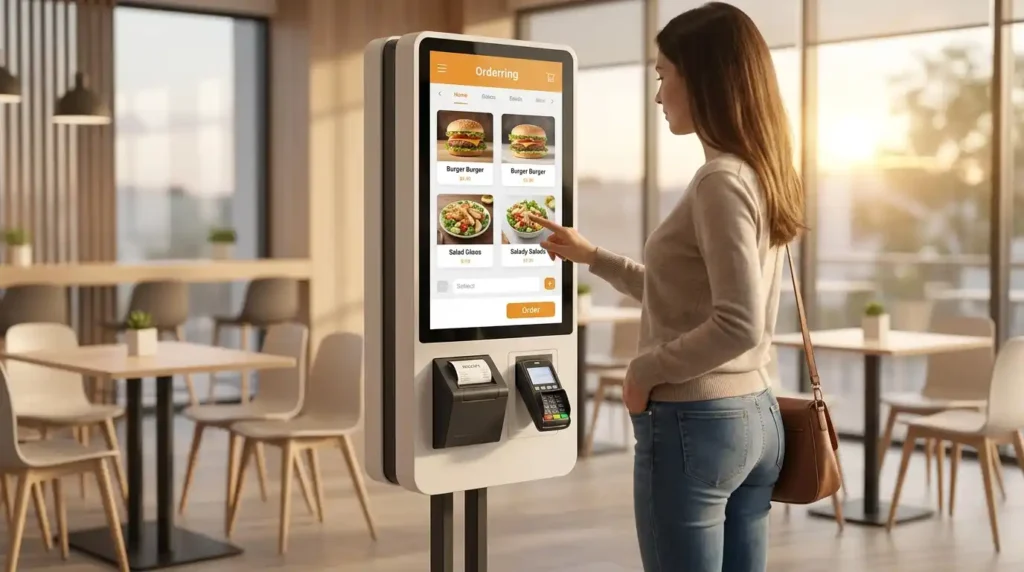
Each peripheral is a software problem disguised as a hardware option. The printer, scanner, camera, card reader and payment bracket all touch the operating system and your application at some point, and each one raises a different integration question. Decide the module list before the quotation, and confirm the interface and support scope for every item on it.
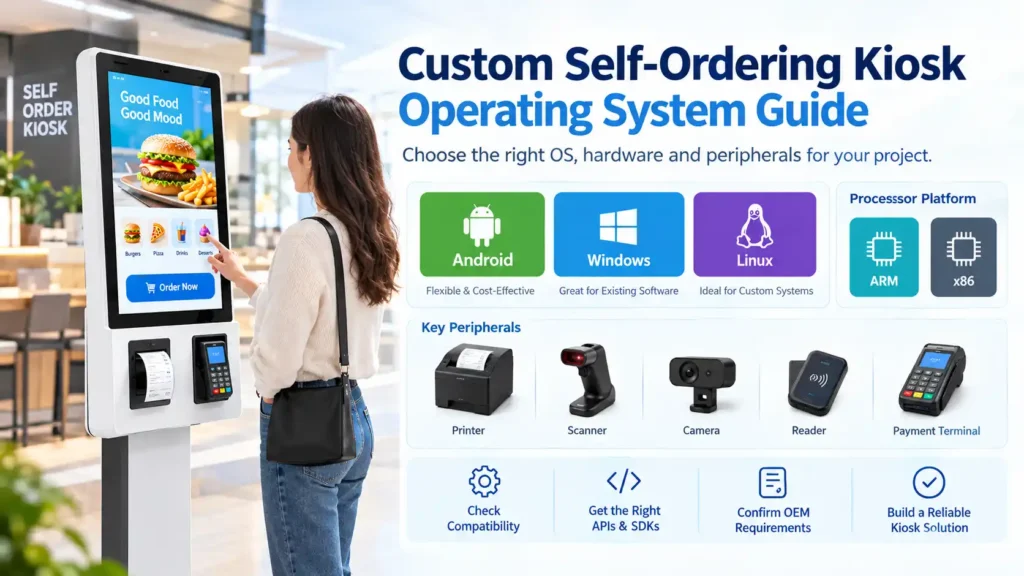
4.1 Thermal Receipt Printer: 58 mm vs 80 mm
Choose the paper width from the receipt content and the venue’s paper supply, and the interface from the mainboard. The printer is the most frequently serviced peripheral in a self-ordering kiosk, so the interface choice has a long-term cost.
- Printer purpose and receipt size. A 58 mm roll suits compact order tickets and shorter receipts; an 80 mm roll carries more line items and is the more common choice in QSR and retail where the receipt doubles as a collection ticket.
- USB versus RS232 interfaces. USB is simpler to install and to swap; RS232 is a long-established interface that many POS software packages and Windows configurations expect natively. Note that the kiosk hardware configurations in this class commonly expose both a set of USB 3.0 ports and an RS232 serial port for POS peripherals.
- ESC/POS command compatibility. Most thermal receipt printers in this market implement the ESC/POS command set, which is why a printer can be swapped between suppliers without rewriting the print routine. If the model implements a proprietary or extended command set, confirm the reprint, cut and drawer-kick commands your software uses.
- Auto-cutter, paper status and error reporting. Confirm the cutter type, and check whether the printer reports paper-out, paper-near-end and cover-open states to the application. Silent printer failures are a common source of customer complaints at unattended terminals.
- Operating system driver and SDK requirements. On Windows and x86 Linux, printers of this class are usually driven by an installed driver and the standard print path. On Android, the application typically needs a printer SDK or a service supplied by the kiosk manufacturer or the printer vendor. Confirm which one applies before ordering.
4.2 QR Code and Barcode Scanner
Decide whether you need 1D barcodes, 2D QR codes, or both, and whether the application needs to configure the scanner or only read its output. That distinction decides whether a standard keyboard-emulating device is enough or whether a vendor SDK becomes mandatory.
- 1D barcode versus 2D QR code scanning. 1D scanning covers product barcodes and simple coupons. 2D scanning adds QR codes, which is what most mobile-payment, loyalty and digital-menu flows use today.
- USB HID keyboard emulation versus virtual COM port. In HID mode the scanner types the decoded value like a keyboard, which needs no driver and no SDK on any of the three operating systems — the simplest and most portable option. In virtual COM or CDC mode, the application reads a serial data stream, which allows more control but requires the application to open and manage the port.
- Screen-based QR scanning. Scanning a QR code displayed on a customer’s phone screen requires a scanner specified for screen reading; some optical configurations read printed codes reliably but struggle with emissive displays. Test with the actual handset models your customers use.
- Basic scanning versus advanced configuration and control. Programmable prefixes and suffixes, symbology enablement, illumination control and trigger management usually require configuration barcodes or a vendor utility. If your application needs those, the scanner’s support package becomes part of the requirement.
- Operating system compatibility requirements. HID scanning works across Android, Windows and Linux without extra software. Anything beyond HID should be verified against the specific operating system version on your mainboard.
4.3 Camera: Image Capture, QR Scanning and Computer Vision
Choose the camera class before the resolution. A standard USB camera and a MIPI camera on an embedded board are supported in completely different ways, and that difference determines who writes the integration code.
- Standard USB cameras and UVC compatibility. USB Video Class means the camera reports itself as a standard video device, so Windows and Linux can use it without a vendor driver. On Android, external camera support depends on the board and Android version, so it must be verified per platform rather than assumed.
- MIPI cameras for supported embedded platforms. MIPI CSI cameras integrate at board level, give better latency and image control, and are the usual choice on ARM boards for embedded vision. They require the board vendor’s driver and camera configuration, and often a full board support package.
- Resolution, frame rate and field of view. Order tickets, identity capture and facial recognition need very different combinations. State the required resolution, minimum frame rate and working distance, and check whether the field of view covers the full face or scan zone at the mounting height you plan.
- Camera drivers, APIs and image-processing SDKs. Windows and Linux normally expose a standard capture interface. Android and embedded platforms generally need either the platform camera API or the manufacturer’s imaging SDK.
- Additional requirements for facial recognition or other computer vision. If the kiosk performs recognition on-device, specify the processor class accordingly and confirm that the vision model has been validated on that SoC. Where facial recognition or similar biometric processing is used, data-protection rules differ by country — including consent, retention and deletion obligations — so confirm the legal position in each target market rather than assuming one policy covers a global rollout.
4.4 NFC, RFID and IC Card Readers
Identify the cards you must read, then the protocol they use, and only then the reader. These three categories are frequently used interchangeably in buyer briefs, and the difference determines both the reader and the certification path.
- Differences between NFC, RFID and IC card readers. NFC is a short-range, standards-based contactless interface used for tap-to-pay and phone-based loyalty. RFID is a broader family covering contactless identification at various frequencies and read ranges, including access cards and tags. An IC card reader handles contact cards through a physical slot.
- Supported cards, tags and communication protocols. State the exact card or tag types — the payment scheme’s contactless cards, ISO 14443 A/B transponders, or a proprietary tag — and the reader’s supported protocol set. Reader-to-card compatibility is not something the kiosk chassis can fix later.
- USB, serial and other supported interfaces. Readers attach through USB, serial or an internal module interface. The interface determines whether a generic driver is available or whether an SDK is needed.
- PC/SC compatibility and vendor SDK requirements. PC/SC is the established standard interface for card readers, and where a reader is PC/SC-compliant the application can often use a standard card API. Non-compliant readers require the vendor’s own library, which is the common case on Android.
- Security considerations for card-reading applications. Card data handling sits under payment-industry rules and, for personal data, under local privacy law. The kiosk enclosure is not the compliance boundary — the payment terminal and the gateway are — but confirm that the reader module and its firmware are appropriate for the data you intend to pass through them.
4.5 Payment Terminal and Custom Mounting Bracket
The bracket is a mechanical deliverable; the payment terminal is a locally sourced, regulated device. Keeping those two apart is the cleanest way to avoid a compliance problem in a kiosk order.
- Buyer-supplied payment terminals. In most kiosk projects the buyer sources the card terminal locally, because payment regulation, scheme approval and the acquiring relationship are country-specific. Common models named in this market include Verifone, Ingenico and PAX.
- Terminal dimensions, mounting holes and installation depth. Give the manufacturer the exact terminal model, or its dimensions and mounting-hole pattern, or a drawing. The bracket is engineered around that geometry; a terminal substituted later in the project will usually not fit.
- Cable routing and maintenance access. Confirm how the terminal’s cables are routed inside the enclosure and whether the terminal can be removed for servicing or replacement without dismantling the kiosk.
- Mechanical compatibility versus software integration. A bracket that fits perfectly is a mechanical success and says nothing about software. Whether the kiosk application talks to the terminal — semi-integrated, or fully separate — is a decision for the software integrator and the payment provider.
- Payment terminal certification and payment gateway responsibilities. Terminal approval falls to the terminal vendor and the acquirer, and gateway integration to the payment provider. A hardware-only factory supplies the mechanical interface and the dimensions; it does not supply the payment terminal or the processing gateway.
4.6 Other Optional Modules
Add optional modules only after the core peripheral set is signed off. Each additional module adds an interface, a support dependency and a potential failure point.
- Customer-facing displays. A second screen for order confirmation or advertising campaign content, usually driven as a secondary display output — which is a mainboard capability question, not just a mechanical one.
- Fingerprint readers. Used for staff authentication or age verification. Confirm the SDK and the biometric data-handling rules in your target market.
- Cash acceptors and dispensers. Where cash remains in use, these modules bring their own interface, denomination configuration and service requirements into the design.
- Additional buttons, sensors and custom I/O modules. Proximity sensors, door-open switches, illuminated signage and custom panels all attach to specific interfaces, so confirm the mainboard has the spare ports and the current budget to carry them.
5. API vs SDK vs Driver vs BSP: What Does Your Manufacturer Need to Provide?
These four words describe four different deliverables, and buyers confuse them more than any other term in a kiosk quotation. A driver attaches a device to an operating system; an API lets an application call a function; an SDK is the toolkit that makes writing that call practical; a BSP is the layer that makes an operating system run on a particular board. Knowing which one a peripheral needs is what prevents a post-delivery integration crisis.
5.1 What Is a Hardware Driver?
A driver is the software that lets the operating system recognise and communicate with a device. Without one, the hardware can be physically connected and electrically healthy and still be invisible to the application.
- How the operating system recognises and communicates with a device. The driver translates generic operating system requests into the specific commands the hardware understands, and reports the device’s state back to the system.
- Standard device drivers versus vendor-specific drivers. Devices that conform to a standard class — keyboard-emulating scanners, standard video-class cameras, mass-storage devices — are handled by drivers already built into the operating system. Devices with proprietary protocols need a vendor-supplied driver.
- Why device recognition does not guarantee application compatibility. Seeing the device in the operating system’s device list proves the connection works. It does not prove the application can print a formatted receipt, read a card, or capture a frame at the required rate. Those are application-level capabilities, and they are what you must test.
5.2 What Are an API and an SDK?
An API is the doorway; an SDK is the doorway plus the instructions, the tools and a worked example. Buyers need to ask for the SDK, not just the API.
- API: functions and interfaces that applications can call. A set of defined calls — open the drawer, print this line, read a card, start a capture — that the application programmer invokes from their own code.
- SDK: libraries, documentation and sample code for software integration. The package that turns an API into practical work: the compiled library for the right platform, the header or interface definitions, the documentation and usually a demonstration program. A sample application is often the difference between a two-day integration and a two-week one.
- When peripheral manufacturers need to provide additional development resources. Whenever the device uses a proprietary protocol, requires configuration beyond the default, or runs on a platform without a generic driver — most commonly Android and other embedded platforms.
5.3 What Is a Board Support Package (BSP)?
A BSP is the vendor’s port of an operating system to one specific board. It is the foundation everything else stands on in an embedded project, and its quality and maintenance status are as important as any specification printed on the board.
- Mainboard-specific operating system support. The kernel, bootloader, drivers and configuration that make a chosen operating system run correctly on that mainboard.
- Kernel, device drivers and hardware configuration. Display, touch controller, storage, network, audio and the peripheral interfaces are all enabled and configured in the BSP rather than by the buyer.
- Device tree and platform integration for applicable ARM/Linux systems. On ARM Linux boards the device tree describes the hardware to the kernel; if a peripheral is not described there, it will not be detected regardless of what the application expects.
- System image, debugging access and update requirements. Ask what image the board ships with, whether debugging interfaces are accessible, and how a fleet update is pushed. A BSP that cannot be rebuilt or updated by the buyer is a dependency, not a deliverable.
5.4 What Technical Support Is Required for Each Operating System?
Support scope changes with the combination of operating system and architecture, so it must be agreed per configuration, not per product. The table below shows the deliverables that are typically in scope — and which of them are usually chargeable engineering work.
| Configuration | Typical deliverables the manufacturer provides | Usually buyer-side |
|---|---|---|
| Android on ARM SoCs | SDK or integration library for supported peripherals, sample code, Android version and patch information, port map, tested peripheral list | The ordering application, the operating system image in most cases, fleet management |
| Linux on ARM SoCs | BSP, kernel and device tree configuration, driver sources where available, image build instructions, hardware documentation | Image maintenance and updates, application, long-term kernel patching |
| Linux on x86 platforms | Driver packages and installation guidance, port map, board documentation, reference image where agreed | Application, distribution lifecycle management, security updates |
| Windows on supported x86 platforms | Driver packages, port and interface documentation, licence guidance, peripheral compatibility list | Windows licence procurement and activation, application, security and update policy |
What is realistic to expect. Requirements depend on the actual board, operating system, peripheral interface and project scope. Two projects on the same brand of kiosk can need completely different deliverables, so treat the table above as a starting point for the conversation and not as an entitlement. Confirm each line in writing, and record who bears the cost of engineering work outside the standard package.
5.5 When Is a Driver Enough, and When Do You Need an SDK or API?
The dividing line is whether the device presents itself as a standard class to the operating system. If it does, a driver — often one already built in — is normally sufficient. If it does not, an SDK or API is required.
- Standard USB HID scanners. Present as keyboards. No driver, no SDK, on any of the three operating systems. The application simply receives text.
- Compatible USB thermal printers. On Windows and x86 Linux, an installed driver plus the standard print path is normally enough. On Android, expect to need the printer SDK.
- USB cameras supported by the operating system. Standard video-class cameras work with the operating system’s built-in support on Windows and Linux. On Android, confirm the board’s external-camera support case by case.
- Proprietary card readers and payment peripherals. Almost always need the vendor’s library and documentation, on every platform including Windows. Card-reading hardware is rarely a plug-and-play device.
- Devices requiring advanced features or custom protocols. Auto-cutter control with status feedback, printer error reporting, scanner configuration at runtime, camera exposure control, reader firmware management — anything beyond the default behaviour usually means SDK.
- The practical rule to carry into a quotation. List every peripheral, mark each one as standard class or proprietary, and ask the supplier to state in writing which of the four deliverables — driver, API, SDK or BSP — applies to each item on that list.
6. How to Check Peripheral Compatibility Before Ordering Kiosk Hardware
Compatibility is confirmed on paper and then proved on a bench sample — not inferred from a specification sheet. The checklist below is the sequence that prevents the most expensive category of kiosk error: hardware that arrives, works partially, and requires a change order to become usable.
6.1 Confirm the Interface and Communication Protocol
Match every peripheral to a physical interface on the mainboard, and agree the protocol in writing. An interface that exists but is already committed to another module is not an available interface.
- USB HID. The most portable option for scanners and simple input devices: no driver, no SDK, works on Android, Windows and Linux alike.
- USB CDC and virtual COM ports. Serial-over-USB for devices that need a data stream rather than keystrokes. The application must open the port explicitly, which has to be supported by the software stack on the chosen platform.
- RS232 serial. Still standard for POS peripherals and frequently required by legacy ordering software. Confirm the port is exposed and configured at the correct baud rate and handshake settings.
- Ethernet. Used for networked peripherals and for the kiosk’s own connectivity. Confirm whether the application needs a second network interface, and whether Wi-Fi and wired can be active together.
- UART, SPI and MIPI where applicable. Internal module interfaces on embedded boards. These are board-level commitments: once the port is allocated to one module, it is normally no longer available for another.
- Also confirm the protocol, not just the connector. A USB cable can carry HID, CDC, mass storage or a proprietary protocol. Specify both the connector and the protocol, and record the answer for each peripheral.
6.2 Confirm Power, Ports and Mechanical Requirements
The port count, the current budget and the mounting geometry are three of the most common causes of a change order. All three can be checked before tooling.
- Available ports and pin assignments. Count the ports the finished kiosk needs inside the enclosure — printer, scanner, camera, reader, terminal, service access — plus one spare. Ask for the pinout of any exposed connector.
- Power supply and current requirements. Each module draws current from a shared rail. A USB 2.0 port supplies 500 mA at 5 V and a USB 3.0 port raises that to 900 mA (USB-IF, USB 2.0 and USB 3.0 specifications), so a printer, a card reader and a camera competing for the same internal hub can exceed the budget even though every device is individually supported. Ask for the internal power budget and the current headroom at the intended configuration. Industrial kiosk hardware in this class normally accepts 110–240 V AC input with a regulated DC output to the modules.
- Mounting dimensions and enclosure cutouts. Confirm the screen size, the enclosure dimensions for countertop, wall-mounted or floor-standing configurations, the cutouts for the printer and the scanner window, and the bracket geometry for the payment terminal.
- Cable routing and maintenance access. Ask how cables are routed and restrained, and whether the front of the unit opens for service without unmounting the enclosure.
- Accessibility geometry for floor-standing kiosks. Where the terminal serves the public, reach and clearance rules may apply. In the United States, the 2010 ADA Standards for Accessible Design require operable parts — the touchscreen, card slot, receipt slot and any physical buttons — to sit within a range of 15 to 48 inches (380–1,220 mm) above the finished floor where the approach is unobstructed, with a 30 by 48 inch (760 by 1,220 mm) clear floor space, toe clearance 9 inches (230 mm) high and 17–25 inches (430–635 mm) deep, knee clearance 27 inches (685 mm) at the front edge, and no more than 5 lbf (22.2 N) of operating force (§§305–309). Screen height, pedestal base width and enclosure depth all have to respect those figures, which is why a tall freestanding kiosk design should be reviewed before tooling. Local requirements elsewhere differ, and equivalent rules are not identical country to country — confirm the position in each target market.
6.3 Confirm Operating System and Application Compatibility
Verify the operating system version, the driver or SDK status, and the application’s own requirements as one package. Each item on its own can look fine while the combination fails.
- Supported operating system versions. Get the exact version and patch level the board supports, not a version family.
- Driver and SDK availability. Ask which of the peripherals on your list already have a working driver or library for that board and operating system version, and ask when they were last validated.
- Application programming interfaces. Confirm the application’s peripheral calls exist on this platform: print, cut, drawer, card read, capture, and any configuration or status reporting your workflow depends on.
- Device permissions and access requirements. On Android in particular, access to cameras, USB devices and serial ports is governed by permissions and by the board’s configuration. Confirm the board permits the access your application needs.
- Test on the exact build, not on a similar one. A vendor demonstration on a different Android version or a different kernel is evidence of intent, not of compatibility with your configuration.
6.4 Test the Actual Hardware Before Mass Production
A bench sample with your real peripherals and your real application is the only compatibility proof that holds. Budget for it in the project plan, and treat acceptance criteria as part of the order rather than a post-delivery conversation.
- Prototype validation. Order one or two units in the final configuration and run them as the venue would.
- Printer command and status testing. Print long receipts, test the auto-cutter, and physically trigger paper-out and cover-open conditions to confirm the application sees them.
- Scanner and reader functionality. Test the actual customer handset screens, the actual cards and the actual tags — not sample codes from a datasheet.
- Camera resolution and frame-rate testing. Measure at the real mounting height, in the real lighting, at the real working distance.
- Full-system integration and reliability testing. Run the unit continuously for a realistic period with all modules active. Kiosk hardware in this class normally undergoes a continuous 48-hour electrical aging and interface connectivity test at the factory before packing, which is a useful baseline — but it validates the hardware, not your application.
- Agree acceptance criteria in writing. Define what “passes” means for each module before the pilot, so the assessment is objective.
7. What Should a Custom Kiosk Hardware Manufacturer Provide?
A competent kiosk manufacturer supplies documentation and hardware, not software and business services. Knowing where that boundary sits is what keeps a project on schedule. The list below is the documentation set to request in the quotation.
7.1 Hardware and Mechanical Documentation
You cannot integrate what you cannot see, and you cannot mount what you cannot measure. Request these before tooling starts.
- Mainboard specifications and interface pinout. The board model, the processor, the supported interfaces, and the pinout of every connector you may need to use.
- USB and serial port map. How many ports the finished unit exposes internally and externally, what each one is allocated to, and how much capacity is left.
- Power requirements. Input voltage range, internal rail voltages, and the current budget available to modules — including headroom for the spare port.
- 2D and 3D CAD drawings. Outline dimensions, mounting points, service access and cutout geometry, in a format your engineers and your installer can both open.
- Enclosure cutouts and custom bracket drawings. The printer aperture, scanner window, card slot and the payment terminal bracket drawing, which is the document that confirms the terminal will physically fit.
7.2 Software and Platform Documentation
Ask for the platform documentation as a named deliverable, because it is the part most often assumed and least often supplied. It is also the part that determines your integration timeline.
- Supported operating system and CPU architecture. The exact combination the board is validated against, in writing.
- Available system images and driver packages. Which images ship with the unit, which drivers are pre-installed, and what the buyer has to source.
- SDK/API documentation and sample code where applicable. The interface documentation and a working example program for the peripherals your application drives.
- BSP and kernel-related deliverables where agreed. Kernel version, device tree sources, build instructions and update procedure, if the project requires them.
- Peripheral compatibility information and technical support scope. A tested peripheral list, and a written statement of what support is included and what is chargeable.
- Where documentation is published rather than project-specific, it usually sits in one place: Adhaiwell maintains a Download Center and technical support hub holding specification sheets, product documentation and support entry points for each display and kiosk series.
7.3 What Is Normally Outside a Hardware-Only OEM’s Scope?
A hardware-only factory builds the terminal; it does not become your software vendor. Understanding this boundary prevents the most common source of schedule slippage in kiosk projects.
- Ordering application development. Not supplied. The application is the buyer’s or the buyer’s developer’s responsibility.
- POS or ERP software integration. Not supplied. The factory provides the port map and the interfaces; the software integrator connects the systems.
- Payment gateway services. Not supplied, and normally sourced locally because payment regulation is country-specific.
- Operating system licenses unless explicitly included. Windows licensing in particular should be an explicit line in the quotation, not an assumption on either side.
- Third-party software licenses. Runtime libraries, database engines or middleware that the application depends on remain the buyer’s responsibility.
- Ongoing application maintenance. Fleet updates, menu changes and application bug fixes are the integrator’s work. The factory supports the hardware and the platform deliverables it agreed to.
7.4 How to Confirm Responsibilities Before Placing an Order
Write the split into the quotation and the purchase order, not into a later email thread. Five items cover the great majority of disagreements.
- Define deliverables in the quotation. Hardware, documentation, drivers, SDK or BSP, test reports and packaging — each listed explicitly, with the ones that are chargeable marked as such.
- Identify who develops and maintains the software. Name the party, on paper, including who owns the operating system image.
- Confirm additional engineering charges. Custom brackets, private-label branding, non-standard ports or bespoke BSP work are usually quoted separately. Ask for the rate and the approval process before work begins.
- Agree on prototype testing and acceptance criteria. Define the sample quantity, the test scope and what constitutes acceptance.
- Agree the change-order process. Decide in advance how a specification change after tooling is priced and scheduled, because that is the point at which a project’s cost is decided.
8. Custom Self-Ordering Kiosk RFQ Checklist
A complete request for quotation is the single most effective way to shorten a kiosk project. Suppliers respond faster, and more accurately, when the four blocks below are filled in. Copy this section into your own RFQ document.
8.1 Operating System and Mainboard Requirements
- Target operating system and version — Android (which version), Windows (10 IoT Enterprise LTSC or Windows 11), or Linux (which distribution).
- ARM or x86 architecture, if known, or state the architecture your software is compiled for.
- Application software requirements — native app, web app, platform, runtime version, minimum resolution.
- RAM, storage and connectivity requirements — memory size, storage size and type, Wi-Fi, Ethernet and mobile data needs.
- Fleet management and update expectations — how updates are pushed and who owns the image.
8.2 Peripheral Configuration
- Printer — 58 mm or 80 mm, USB or RS232, ESC/POS compatibility, auto-cutter and status reporting requirements.
- Scanner — 1D, 2D or both; HID or virtual COM; printed-code only or screen-reading; any configuration needs.
- Camera — USB or MIPI; resolution, frame rate and field of view; capture only or on-device processing.
- Reader — NFC, RFID or IC card contact; exact card and tag types; interface; PC/SC compliance; SDK requirement.
- Payment terminal — brand and model, or dimensions and mounting-hole drawing; bracket requirement; cable routing and service access.
- Other optional modules — customer-facing display, fingerprint reader, cash module, sensors, custom I/O.
8.3 Mechanical and Environmental Requirements
- Screen size and resolution — 15.6, 21.5, 23.8, 27 or 32 inch, and the required resolution.
- Installation type — countertop, wall-mounted or floor-standing.
- Enclosure dimensions and material — overall footprint, and steel gauge or finish requirements.
- Operating environment and daily duty cycle — indoor or covered outdoor, ambient temperature range, and hours per day.
- Custom colour, logo and branding — RAL colour reference, logo artwork and packaging requirements.
- Accessibility requirements — reach range, clear floor space and mounting height where the units serve the public.
8.4 Software Support and Commercial Requirements
- Required drivers, SDKs, APIs and BSP deliverables — listed per peripheral, marked standard or chargeable.
- Software development responsibility — the named party who owns the application and the operating system image.
- Required technical documents — pinout, port map, power budget, CAD, tested peripheral list, test reports.
- Order quantity, target market and compliance requirements — units per site and per phase, destination countries, and the certifications the market requires.
- Prototype testing, lead time and expected product lifecycle — sample quantity, acceptance criteria, delivery schedule, warranty terms and the planned refresh cycle.
9. Frequently Asked Questions About Self-Ordering Kiosk Systems
These answers come from Adhaiwell’s engineering and export teams in Shenzhen, where we configure Android, Windows and Linux self-ordering kiosk hardware for system integrators, POS software vendors, distributors and project contractors — and where we see which integration questions arrive before an order and which ones arrive after delivery, when they cost far more to resolve.
9.1 Which Operating System Is Best for a Self-Ordering Kiosk?
There is no single best operating system; the right one is whichever your ordering software already runs on. Android suits low-cost ARM hardware and touch-first interfaces, Windows suits existing x86 POS and ERP software, and Linux suits buyers who maintain their own embedded image. Confirm the software and the peripheral set first, then the platform follows.
9.2 Is Android or Windows Better for a Restaurant Kiosk?
Android is usually better for new quick-service builds, and Windows is usually better when you already run Windows POS or ERP software. Android gives lower hardware cost, no licence fee and simpler touch-first operation; Windows gives the broadest peripheral driver support and direct compatibility with existing business software. The deciding factor is your software stack, not the venue type.
9.3 Can Linux Kiosks Run on ARM-Based Processors?
Yes. Linux runs on both ARM and x86, which is why it is the only one of the three platforms that spans both architectures. On ARM boards, the kernel and hardware configuration come from the mainboard vendor’s board support package, so confirm that a maintained BSP exists for the exact board before committing.
9.4 Does a Windows Kiosk Need a Manufacturer-Provided SDK?
Usually not for standard peripherals, but sometimes yes for proprietary ones. Standard-class devices such as HID scanners and video-class cameras are handled by the operating system’s own drivers. Proprietary card readers, payment peripherals and devices requiring configuration or status reporting generally still need the vendor’s library or SDK, on Windows as on any other platform.
9.5 Do Android Kiosks Require Custom APIs or SDKs for Printers and Scanners?
For printers, usually yes; for HID scanners, often no. A receipt printer on Android is normally driven through a printer SDK or a service supplied by the printer vendor or the kiosk manufacturer. A barcode scanner running in USB HID keyboard mode needs no driver or SDK on any platform — it simply types the decoded value into the application.
9.6 Can I Use My Own Printer, QR Scanner, Camera and Card Reader?
Yes, and this is common in integrator projects, provided the models are confirmed compatible before ordering. Send the manufacturer the exact brand and model of each peripheral, together with the interface you intend to use, and ask for written confirmation of driver, SDK or BSP availability for your chosen operating system. A model substituted after the hardware is built may not fit or may not be supported.
9.7 What Is the Difference Between a Driver, API, SDK and BSP?
A driver lets the operating system talk to a device; an API is the set of calls an application uses; an SDK is the library, documentation and sample code that make those calls practical; and a BSP is the vendor’s port of an operating system to a specific mainboard. Knowing which one each peripheral needs is what prevents an integration failure after delivery.
9.8 Can the Manufacturer Customize a Payment Terminal Bracket?
Yes. Send the payment terminal model, or its dimensions and mounting-hole drawing, and the bracket can be engineered to fit it. The payment terminal itself and the payment gateway service are normally the buyer’s responsibility, because payment regulation and acquiring relationships are country-specific.
9.9 Can I Order Kiosk Hardware Without an Operating System or Ordering Software?
Yes. Hardware-only supply is a normal arrangement for system integrators and POS software vendors. The factory supplies the terminal, the mainboard, the peripherals and the documentation; the buyer installs their own operating system image and application. Confirm the documentation package and support scope that come with the hardware before ordering.
9.10 What Information Is Needed for an Accurate Custom Kiosk Hardware Quotation?
Six items cover most of it: the operating system and version, the processor architecture, the peripheral list with interfaces, the mechanical and environmental requirements, the required software support deliverables, and the order quantity with target markets. Providing these in the first message typically removes several rounds of clarification and shortens the quote cycle.
10. Configure Your Custom Self-Ordering Kiosk Hardware with Adhaiwell
Adhaiwell manufactures self-ordering kiosk hardware as a hardware-only OEM platform, built around the operating system and peripheral set the buyer specifies. We supply the terminal, the mainboard and the peripheral modules; the buyer supplies the ordering software, the operating system image and the payment service — a split that lets integrators and POS software vendors reuse the infrastructure they already run.
- Operating system options. Android on RK356-class ARM boards (Android 10, 11 or 14), Windows on Intel Celeron, i3, i5 or i7 configurations (Windows 10 or 11), and Linux on ARM Cortex-A or x86-compatible boards with Ubuntu, customised Debian or embedded Linux.
- Screen and form factor options. 15.6, 21.5, 23.8, 27 and 32 inch 10-point projective capacitive touch panels, in countertop, wall-mounted and floor-standing configurations specified independently of the operating system choice.
- Peripheral integration. 58 mm or 80 mm thermal receipt printers with auto-cutter, 1D/2D QR and barcode scanners, monocular or binocular camera modules, NFC readers, IC card slots and RFID modules.
- Payment terminal brackets. Custom-engineered steel mounting brackets and housing to fit buyer-supplied terminals, including Verifone, Ingenico and PAX models.
- Documentation and platform support. Mainboard specification and pinout, port map, power budget, mechanical drawings, and driver, SDK or API support for the agreed configuration — with the scope confirmed in the quotation, since requirements depend on the actual board, operating system, peripheral interface and project scope.
- Factory verification. Continuous 48-hour electrical aging and interface connectivity testing before packing, individual export-grade wooden crates, and CE, FCC and RoHS certification for customs clearance in major markets.
Send your target operating system and version, your processor architecture, and your peripheral list with the interface you intend to use for each item, and our engineering team will confirm what is supported, what needs an SDK or API, and what is chargeable engineering work before you commit. You can review the custom self-ordering kiosk hardware supplied as a hardware-only OEM platform as a starting reference, and the current kiosk specification sheets and platform documentation for the technical files referenced above.
Data Sources Cited
| Figure or fact | Source | Year | Label |
|---|---|---|---|
| Restaurant self-order kiosk market US$3.85B (2025) → US$4.48B (2026) → US$10.87B (2032), 16.03% CAGR; hardware 63.0% of component value; QSR 54.5% of demand; average check size 15–20% higher with automated upsell | PW Consulting, *Worldwide Restaurant Self-order Kiosk Market 2026* | 2026 | Third-party estimate |
| Kiosk operating system market by type (2025): Windows-based 45.36% (US$192.12M); Linux-based 36.47% (US$154.47M); Android-based 18.16% (US$76.91M). Applications: retail and banking 38.78%, healthcare 25.81%, transport and travel 22.29% | PW Consulting, *Kiosk Operating System Market* | 2026 | Third-party estimate |
| More than 58% of large restaurant chains operated at least one self-ordering kiosk location in 2025 vs 37% in 2020; 21″–32″ touchscreens 61% of installed systems; more than 420,000 active kiosk units; contactless payment in approximately 88% of newly deployed units | Market Reports World, *Restaurant Kiosk Market* | 2026 | Third-party estimate |
| Windows 10 support ended 14 October 2025; consumer Extended Security Updates run to 12 October 2027 and are not offered for devices in kiosk mode or in commercial scenarios; commercial ESU US$61 per device for Year One, doubling each consecutive year, maximum three years | Microsoft, Windows 10 lifecycle documentation and Extended Security Updates programme | 2025 | Primary source (vendor) |
| Android Enterprise Recommended: security updates within 90 days for a minimum of five years on rugged devices and three years on knowledge-worker devices; rugged minimum baseline 2 GB RAM, 16 GB storage, 1.1 GHz | Google, Android Enterprise Recommended requirements | 2026 | Primary source (vendor programme) |
| Ubuntu LTS maintained 10 years total — 5 years standard security maintenance plus 5 years Expanded Security Maintenance; Ubuntu 24.04 LTS end of standard support May 2029, Ubuntu Pro support to May 2034 | Canonical, Ubuntu release cycle documentation | 2026 | Primary source (vendor) |
| Operable parts within 15–48 in (380–1,220 mm) AFF unobstructed; clear floor space 30 × 48 in (760 × 1,220 mm); toe clearance 9 in (230 mm) high, 17–25 in (430–635 mm) deep; knee clearance 27 in (685 mm); maximum operating force 5 lbf (22.2 N) | 2010 ADA Standards for Accessible Design, §§305–309 (U.S. Department of Justice) | 2010 | Primary source (standard) |
| USB 2.0 port supplies 500 mA at 5 V; USB 3.0 port supplies 900 mA | USB Implementers Forum, USB 2.0 and USB 3.0 specifications | 2000 / 2008 | Primary source (standard) |
| Android configuration RK356 quad-core 1.8 GHz+, 2/4/8 GB RAM, 16/32/64 GB eMMC, Android 10/11/14; Windows configuration Intel Celeron/i3/i5/i7, 4/8/16 GB DDR4, 128/256 GB SSD, 4× USB 3.0 + RS232, Windows 10/11; Linux configuration ARM Cortex-A or x86-compatible, Ubuntu/customised Debian/embedded Linux; screens 15.6″–32″ 10-point PCAP; 58/80 mm printer with auto-cutter; 110–240 V AC; SPCC cold-rolled steel; fanless; 48-hour aging test; CE/FCC/RoHS | Adhaiwell product page, *Self-Ordering Kiosk Hardware & POS Integration* | 2026 | Factory-published specification |
Methodology caveat: the market figures above come from commercial research reports whose scopes and methodologies differ between firms. They are provided as directional industry context only, and must not be read as a forecast of revenue, order volume or return for any specific kiosk project or fleet. The platform-share figures in particular describe a broad installed base across banking, ticketing, retail and transport, and do not describe new quick-service restaurant deployments.