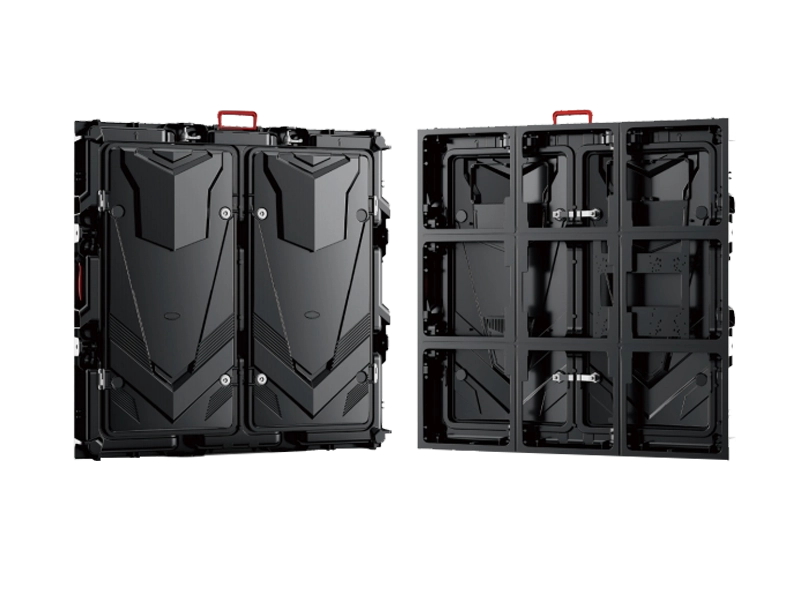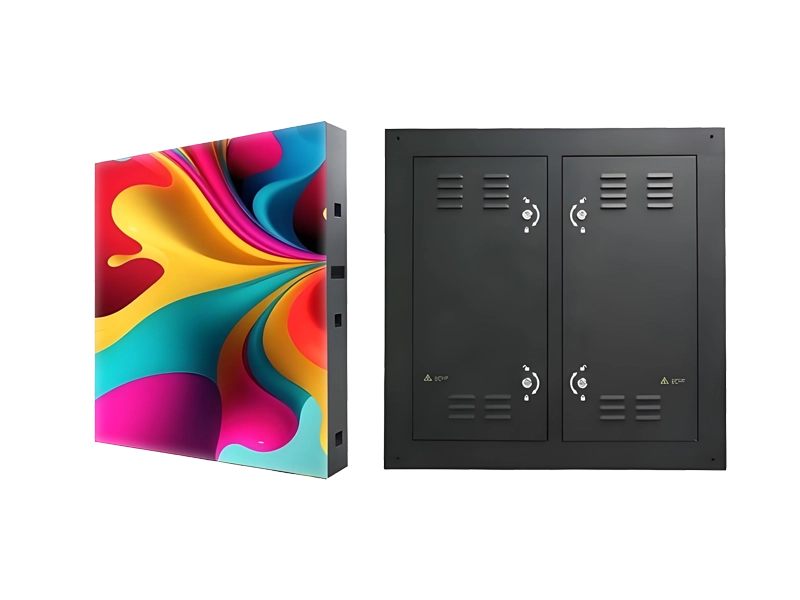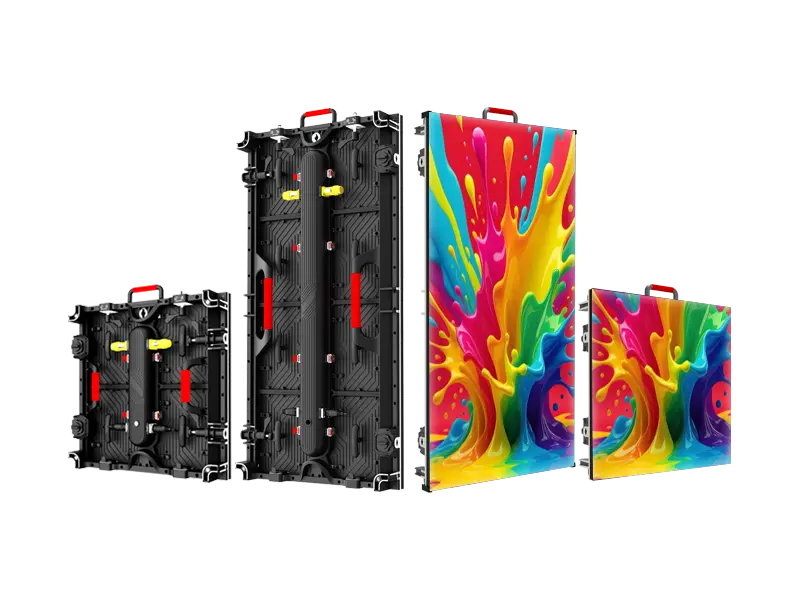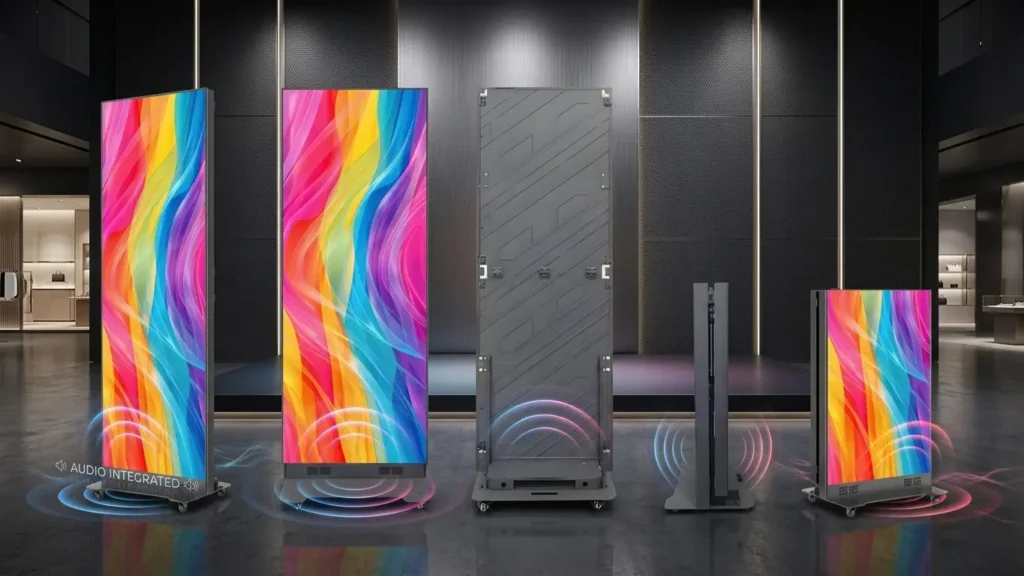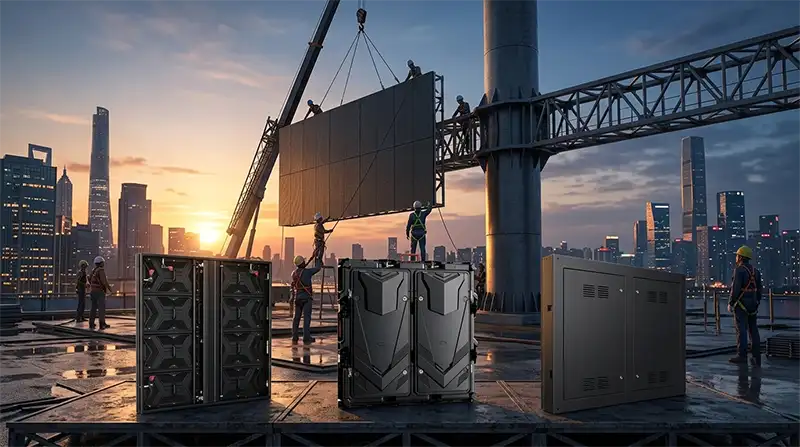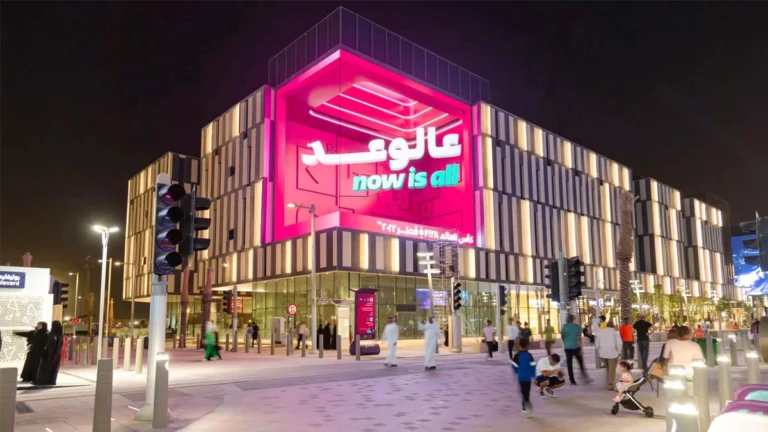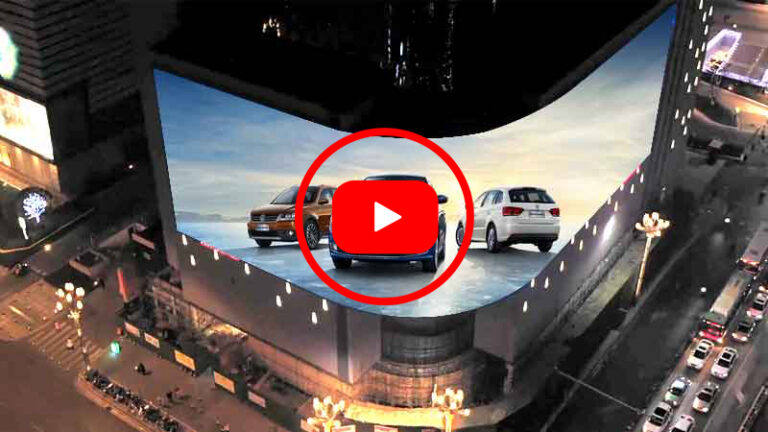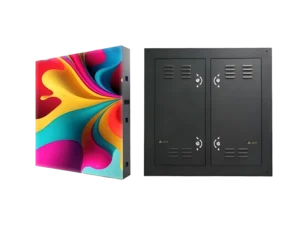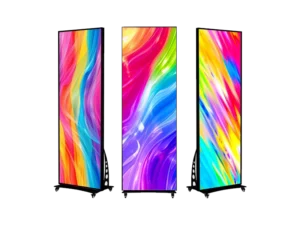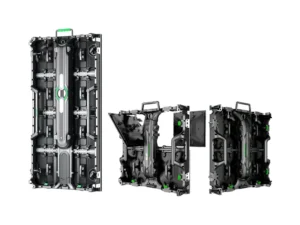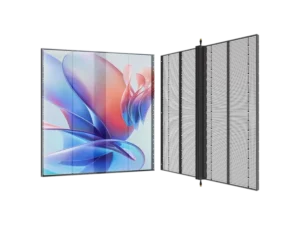
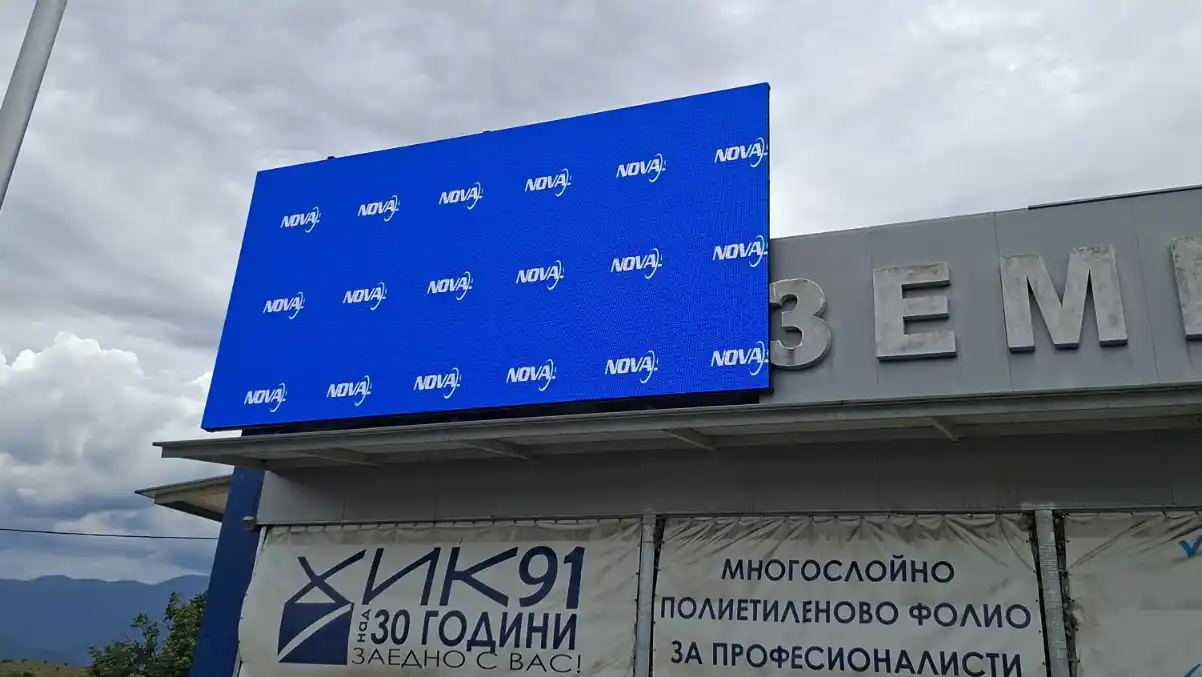
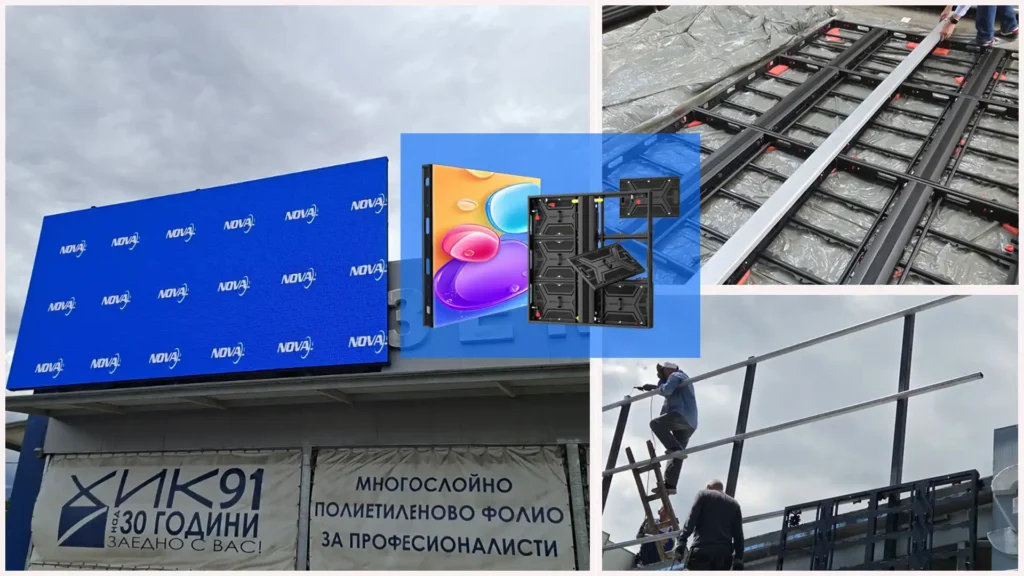
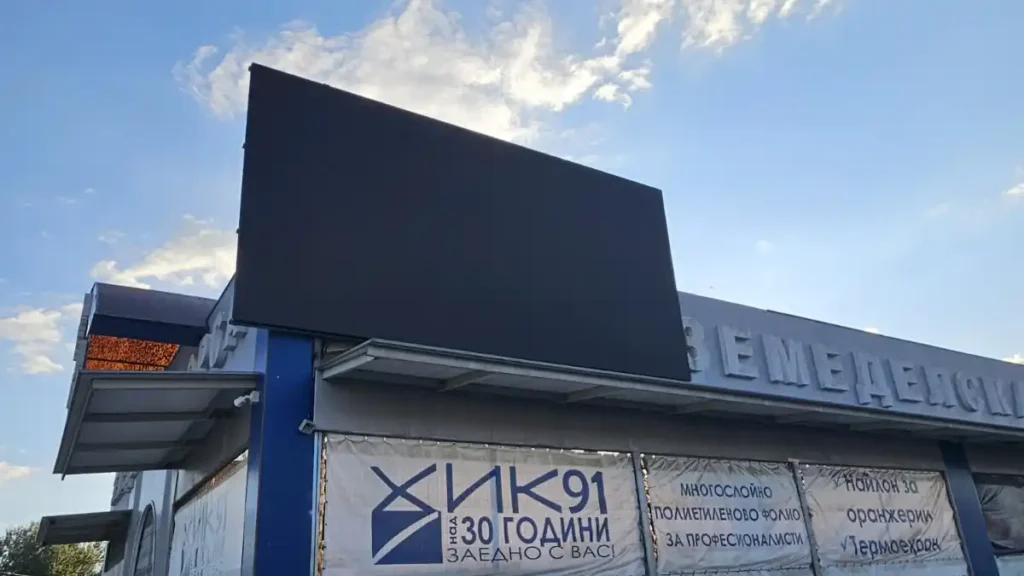
For commercial LED display integrators and outdoor advertising operators, reliable on-site commissioning is often the final step that determines whether a project runs smoothly or becomes a costly delay. Recently, the Adhaiwell engineering team successfully supported a premium client in Bulgaria with the installation of a 6m × 3m outdoor P3.91 LED billboard using our High-Performance Industrial-Grade Energy-Saving Aluminum Profile Alloy Outdoor LED Display solution.
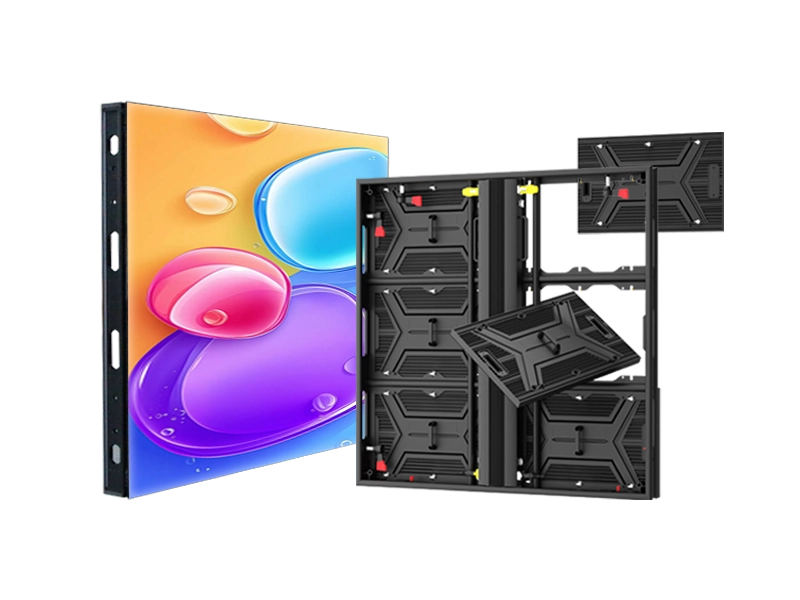
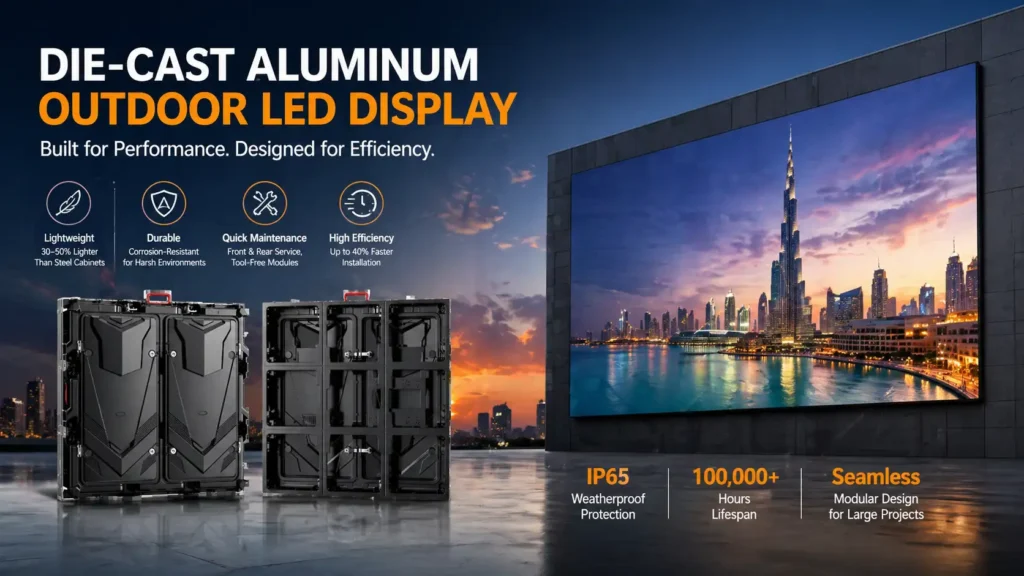
Designed for long-term outdoor advertising applications, this aluminum profile alloy LED display features lightweight structural design, excellent heat dissipation, lower power consumption, and high weather resistance — making it especially suitable for European outdoor digital signage projects requiring stable 24/7 operation.
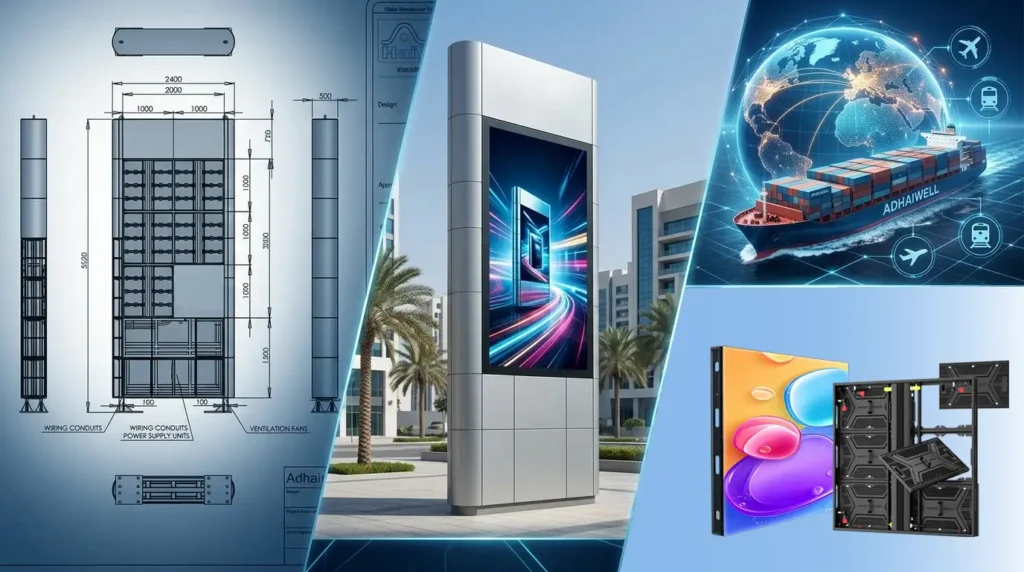
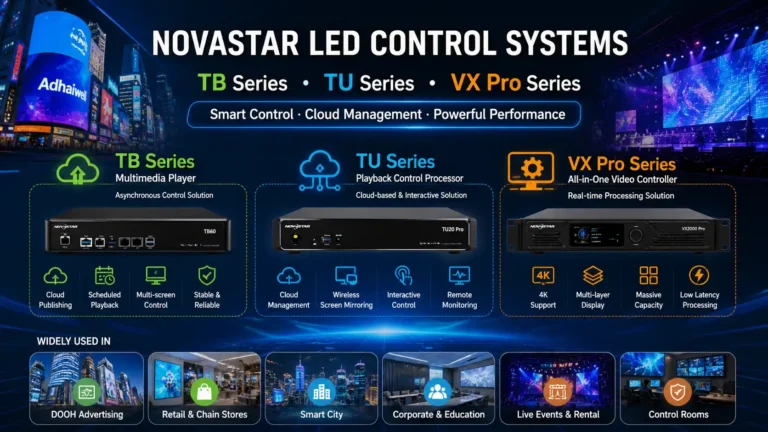
During the initial project phase, Adhaiwell not only supplied the complete LED display system, but also provided detailed steel structure engineering drawings to assist the client with local wall-mounted framework fabrication and installation. After the physical installation was completed on-site, our senior engineers connected remotely in real time to guide the customer through NovaStar TB media player setup, screen parameter configuration, and loading the LED screen configuration files, ensuring perfect image synchronization and a successful first-time screen ignition.
As a China-based B2B LED display manufacturer focused on reducing Total Cost of Ownership (TCO) through turnkey support services, Adhaiwell believes that dependable after-sales technical assistance is just as important as product quality itself. Based on this real Bulgaria installation project, we created the following practical guide to help overseas installers quickly configure NovaStar TB Series multimedia players — including TB1, TB2, TB30, TB40, TB50, and TB60 — and correctly load .scr configuration files using NovaLCT software in just a few minutes.
Phase 1: Software Deployment & Pre-Requisites
Before conducting on-site engineering commissioning, ensure your local field laptop is properly set up with official control components:
- Download NovaLCT Software: Visit the official NovaStar download center repository (
https://www.novastar-led.cn/index/downloadcenter/index.html?type=software) and preferentially acquire the latest stable iteration of NovaLCT debugging software. - Language and Driver Installation: Select your required native language version during the initialization wizard. Keep the prompt checked to install the integrated USB driver, which allows your computer operating system to read the external sending hardware.
Phase 2: Industrial Hardware Interconnection
Physical connection issues account for over 70% of field configuration failures. Just like our field engineering layout in the Bulgaria project, follow this exact wiring architecture:
- Controller to LED Display: Plug a high-quality, shielded Ethernet cable from the output port of the NovaStar multimedia player box or controller into the receiving card RJ45 port of the first LED display cabinet.
- Computer to Controller: Bridge your laptop to the controller unit using the specialized USB data cable provided in the original manufacturer’s product packaging.
Phase 3: Navigating the Dual Login Protocols
NovaLCT software splits its entry criteria based on device categories. Choosing the wrong path will block access to screen settings.
Option A: Advanced Synchronous Mode (For VX & MCTRL Series)
If you are operating a standard synchronous processor like the NovaStar VX series (e.g., VX4S, VX600, VX1000) or MCTRL series:
- Click User (U) ➡️ Advanced Synchronous System User Login (A).
- Input the universal engineering factory authorization password: Ask your vendor.
Option B: Multimedia Player Box Login Mode (For TB & TU Series)
For asynchronous platforms, smart city light-pole screens, and remote-managed digital signage utilizing the NovaStar TB Series and TU Series:
- Click User (U) ➡️ Media Player Login (T).
- From the Terminal List window pop-up, highlight your detected Taurus device serial number and click Connect System.
- Input the explicit root operational credentials:
- User Name:
admin - Password:
ask your vendor(Note: Ensure proper capitalization and symbols are retained, do not just input 666)
- User Name:
Phase 4: Loading the .scr Screen Configuration File
Once logged into your Taurus terminal node profile dashboard, you can proceed to update the hardware profile parameters.
Step 1: Open Screen Configuration
Locate and click the large Screen Configuration gear icon inside the main NovaLCT management display window.
Step 2: Establish the Communication Port Link
A dialog box labeled “Select Communication Port” will appear. Use the dropdown tab menu to select the designated COM Port (e.g., COM99) identifying your physical hardware attachment, then click Next.
Step 3: Import the Mapping File
Within the advanced configuration panel grid layout, switch over to the Screen Connection tab page. Look down toward the lower section buttons and click on Load from File.
Step 4: Locate the File Pathway
Browse your computer storage partitions to pinpoint the exact screen profile payload file provided by your LED engineering supplier. This file must possess a valid .scr extension. Highlight the file entry descriptor name and confirm.
Step 5: Push Data to Live Hardware
After successfully populating the visual topology canvas map via the loaded file, click the Send to HW (Send to Hardware) action execution button located at the bottom right corner. This transmits the configuration directly into your display’s volatile processing memory.
Safety Note: To ensure configuration retention after power cycles, remember to click Save inside the confirmation prompt to commit the newly applied parameters permanently onto the hardware’s non-volatile ROM chips.
🛠️ On-Site Engineering Troubleshooting Matrix
| Problem Observed | Primary Core Cause | Recommended Practical Solution |
| NovaLCT shows “No Hardware Detected” | Broken or loose PC-to-Controller USB cabling; or missing USB driver assets. | Swap out the USB data cord. Reinstall NovaLCT to verify that the virtual USB controller driver package finishes installation completely. |
| Login rejected on TB30/TB60 Player | Attempted log in via Synchronous System options or used standard password string 666. | Exit current screen. Switch entry choice explicitly to Media Player Login, using user account identifier admin and credentials string SN2008@+. |
| LED display module alignment scrambled | Wrong mapping structure built inside loaded .scr setup parameters. | Double-check screen width/height structural values. Reach out directly to your dedicated Adhaiwell engineering representative to fetch the native factory-calibrated .scr profile matching your exact batch run. |
| Steel Structure Alignment Defect | Inaccurate site measurements or local fabrication deviation during wall mounting. | Follow the exact millimeter-level CAD drawings provided by Adhaiwell during the initial architectural stage to rectify structural framing tolerance before cabinet loading. |
🏢 Premium Engineered Solutions by Adhaiwell
As a leading global B2B China LED display manufacturer, Adhaiwell doesn’t just export hardware components; we deliver dependable turnkey display solutions. Our successful delivery of the 6m x 3m outdoor P3.91 display billboard in Bulgaria perfectly demonstrates our corporate philosophy. We provide structural engineering guidance, local manufacturing blueprints for wall-mounted steel setups, and precise software parameter support.
Every commercial fixed display screen, rental staging solution, or high-brightness outdoor digital billboard we ship goes through an exhaustive quality protocol. This includes a strict 72-hour structural burn-in period and detailed SRC-200s spectral system calibration before leaving our Shenzhen processing facility.
Contact our international engineering support team today at adhaiwelldisplay.com for professional-tier product sourcing quotes, structural blueprint assistance, and system layout design documentation.
❓ Frequently Asked Questions (FAQ )
Q1: What exactly is an LED screen .scr file format?
An .scr file is a proprietary structural configuration payload file created within NovaLCT software. It contains essential layout instructions, wiring maps, data signal routing charts, and module pixel addresses required for the control box to render an un-distorted visual output across multiple display cabinets.
Q2: How did Adhaiwell support the Bulgaria client with the steel structure?
We engineered custom, millimeter-accurate CAD technical blueprints specifically tailored for a wall-mounted steel structure setup. This enabled the Bulgarian engineering team to source materials locally and manufacture the frame seamlessly, ensuring that our P3.91 display cabinets aligned flawlessly without any physical spacing gaps.
Q3: What happens if I forget to click “Save” after hitting “Send to HW”?
Clicking Send to HW pushes your screen configurations to the hardware’s temporary volatile memory workspace (RAM). If you turn off or reboot the LED display control system without clicking the final Save action button, the system will clear those settings and revert to its previous configuration, resulting in a black or scrambled screen upon reboot.
Q4: Why does my NovaStar TB series multimedia player box need a different password than a VX controller?
Synchronous system cards (like the VX series) receive continuous live video inputs from external computer sources. Asynchronous media players (like the TB series) contain autonomous processing architectures, network links, and internal operating servers. They require a more secure authentication login method (Media Player Login with password SN2008@+) to protect network security during remote or wireless data transfers.
Q5: How can I obtain a replacement .scr file if my original copy gets corrupted?
If your local storage copy becomes unreadable, look at the physical product identification labels placed onto the rear structural framework panels of your display cabinets. Provide those project numbers or purchase orders directly to the Adhaiwell engineering service division to get a matching copy of your factory configuration file.